KO-DETECT ON

Record damage in your photos and organize it into inspection documents.

Link photos taken on your phone to locations on the drawing and keep the damage details with them.
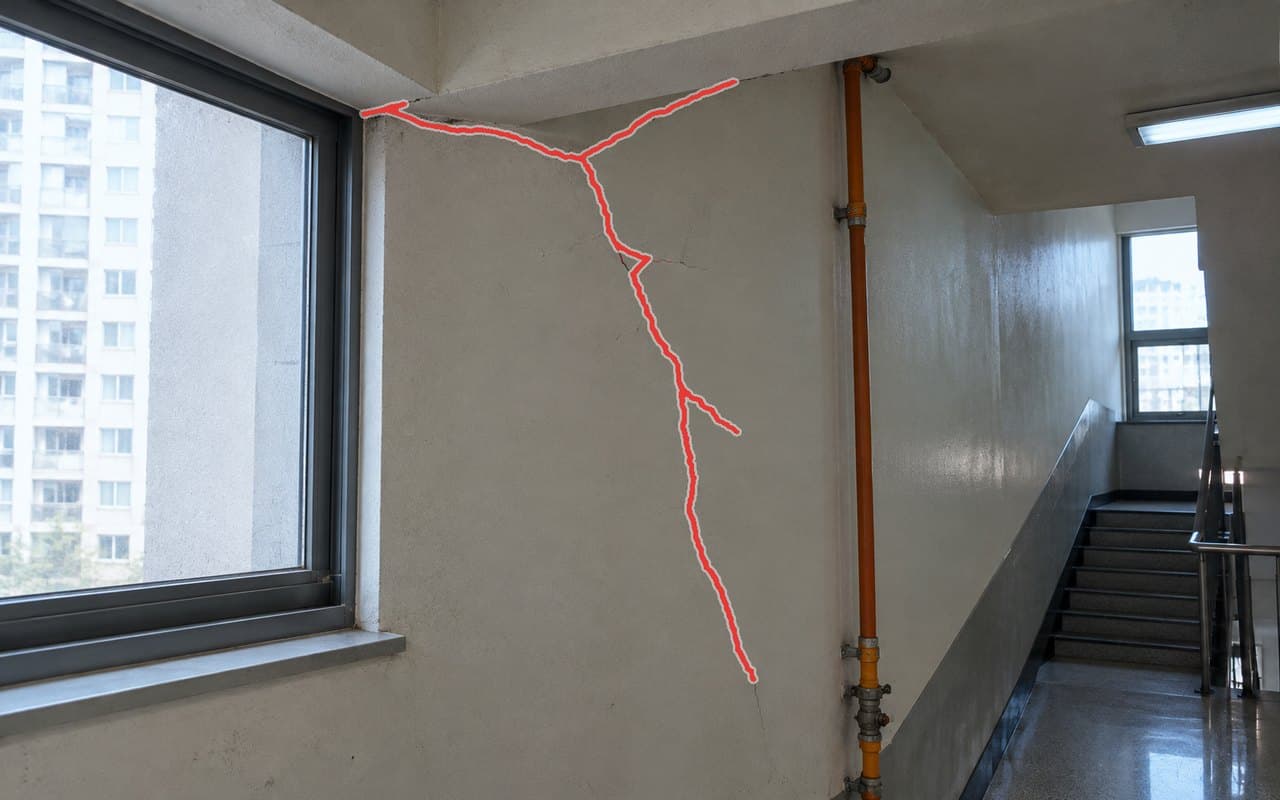
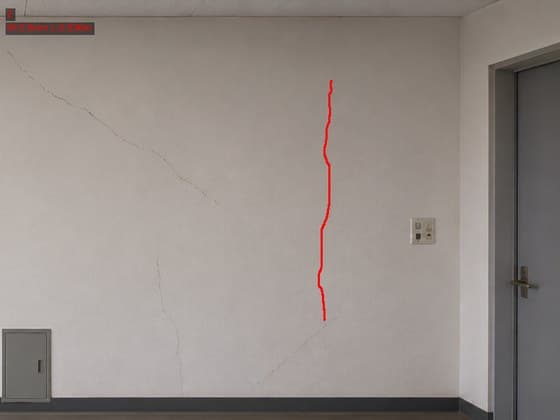
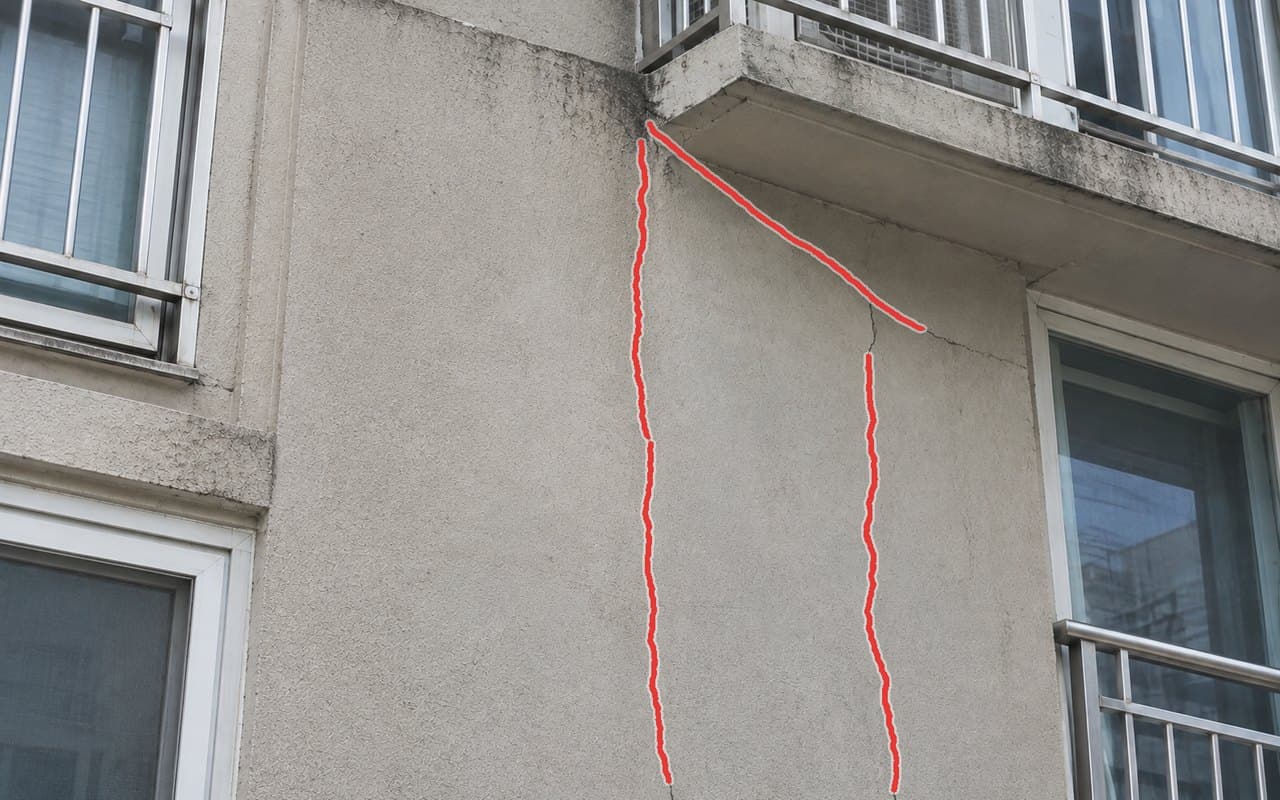
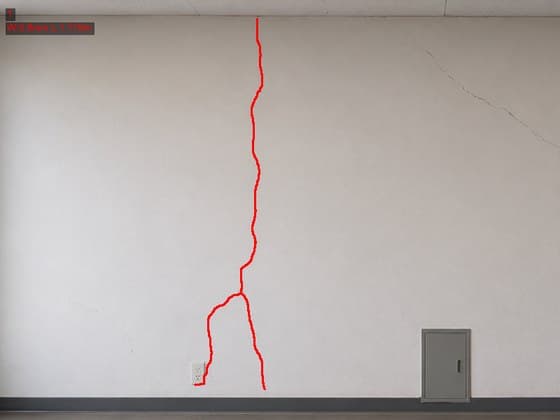
Analysis screen where AI traces cracks in a concrete wall with red lines and shows width and length at two points

From everyday records to inspection documents, all in one flow.

Work continuously in one program, from photo records to the materials your inspection report needs.

Everyday facility management

Anyone

Residents, landlords, owners and management offices shoot, save and organize photos by location to record the condition of a facility.

  1. 01ShootTake site photos on your phone
  2. 02LocateRecord floor, zone and position on the drawing
  3. 03FoldersAuto sort and save by place and time

Professional safety inspection

Professionals

Safety inspectors review AI crack analysis results from the same records and create photo sheets, damage quantity tables and exterior survey drawings for their reports.

  1. 04AI analysisCrack detection and real size calculation
  2. 05Report outputPhoto sheets, quantity tables and survey drawings at once
  3. 06Records by roundKeep records separated by inspection round
  4. 07Facility managementBuild up each building’s history in one place

With photos from your phone, anyone can keep records.

From the people who live in a building to the experts who inspect it, anyone can record and manage a facility’s condition with photos.

Who it is for.

  • Safety inspectorsPhoto sheets, damage quantity tables and exterior survey drawings are created automatically, cutting writing time.
  • Building owners · Offices · RetailShoot the same spots every quarter to record their condition and keep them as reference for repair plans.
  • Appraisal · Due diligence · InsuranceRecord damage with photos and figures and use them as grounds for decisions.
  • Schools · Municipal facilitiesInspect regularly on a small budget and record damage quickly right after typhoons or heavy rain.
  • Management offices · FM companiesRecords stay in the project folder so a new manager can pick up where the last one left off, and reports keep the same format.
  • Landlords · TenantsShoot the same spots on move-in and move-out days and use them as evidence when settling the deposit.
  • New apartment residentsOrganize defect photos from the pre-move-in inspection by location and use them for defect claims.
  • Factories · Logistics centersKeep site photos and damage records in a project folder on your own PC.

Places you can record and manage.

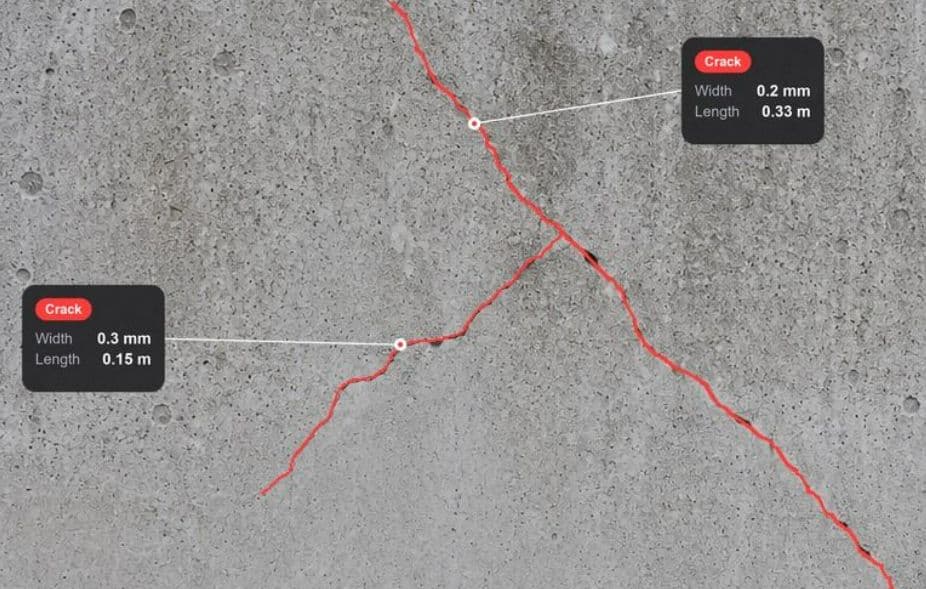
Crack on the exterior wall under an apartment balcony

Apartment · Building exteriors

Elevations · Under balconies · Joints

Crack in a corridor wall

Corridors · Stairwells

Walls · Ceilings · Landings · Around windows
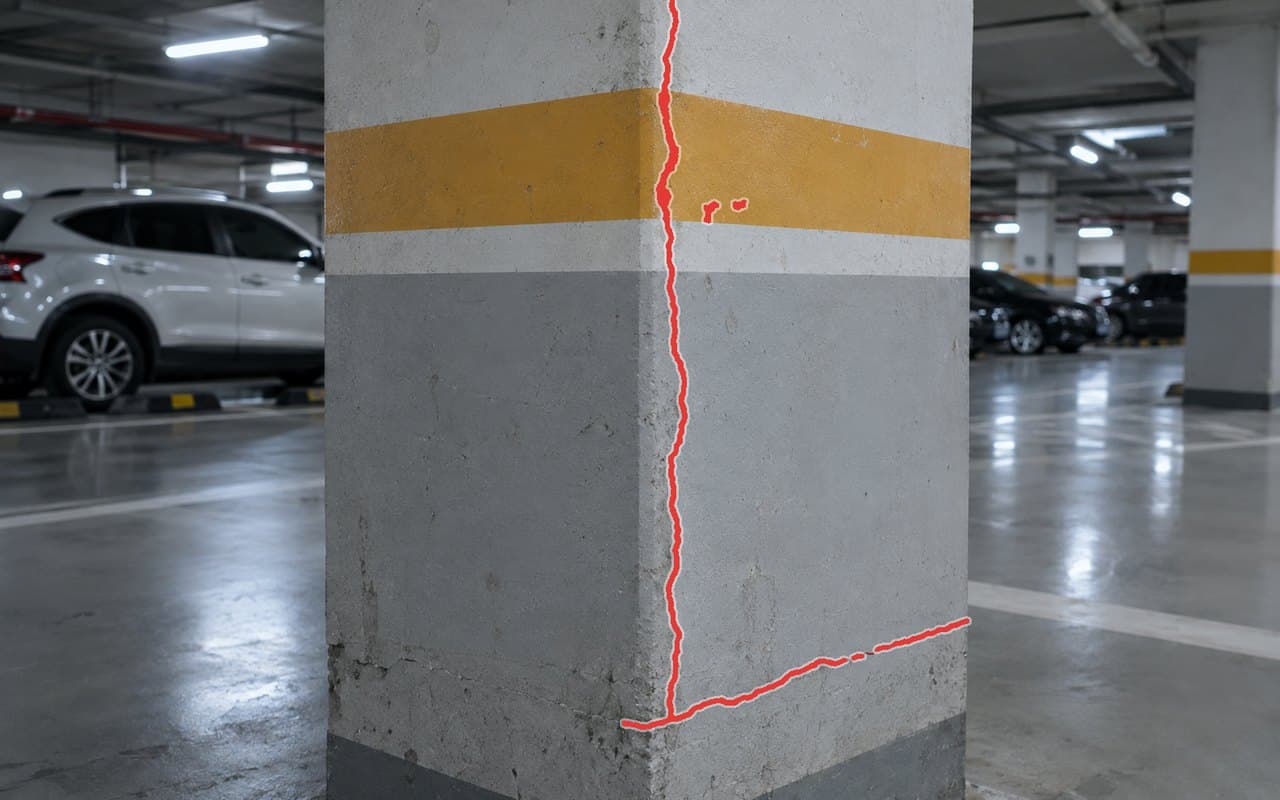
Photographing an underground parking column with a phone

Underground parking

Columns · Beams · Ceiling slabs · Floors
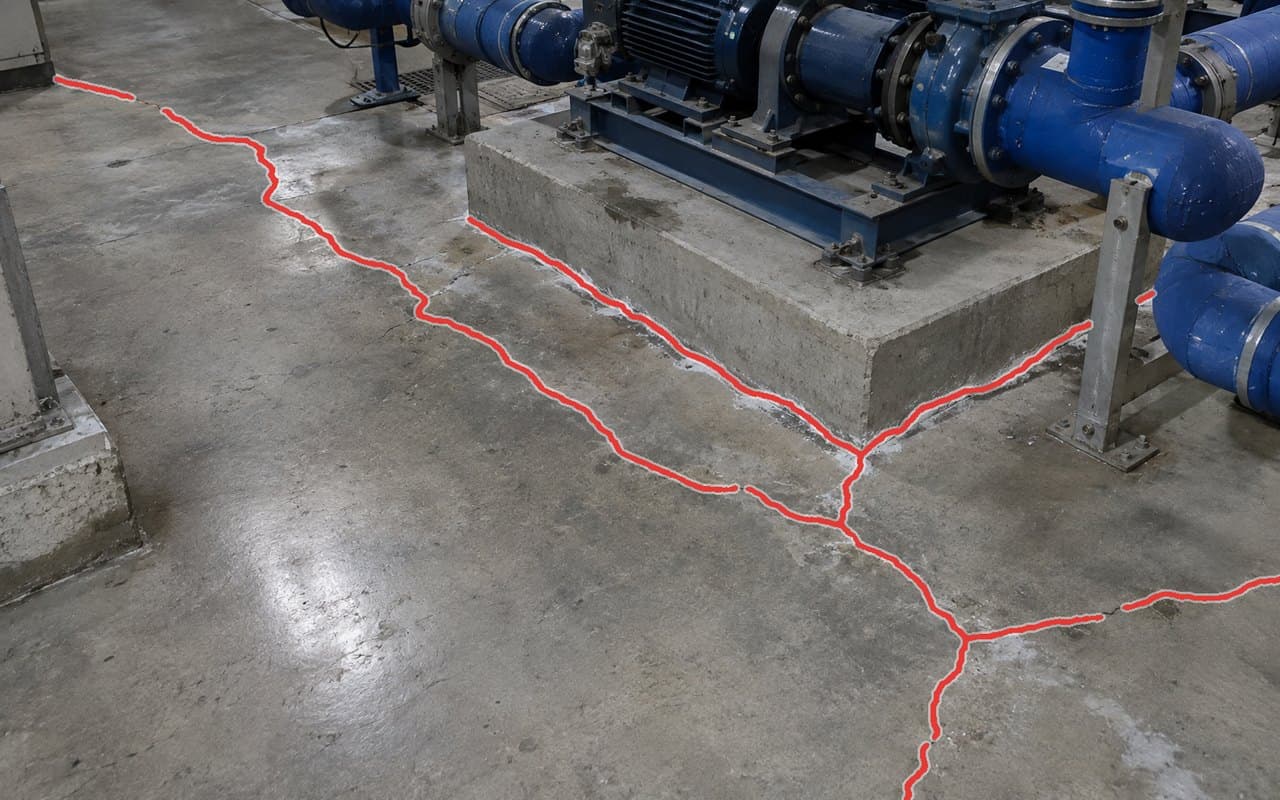
Floor crack around an equipment base in a machine room

Machine · Electrical · Water tank rooms

Equipment bases · Walls · Floors · Curbs
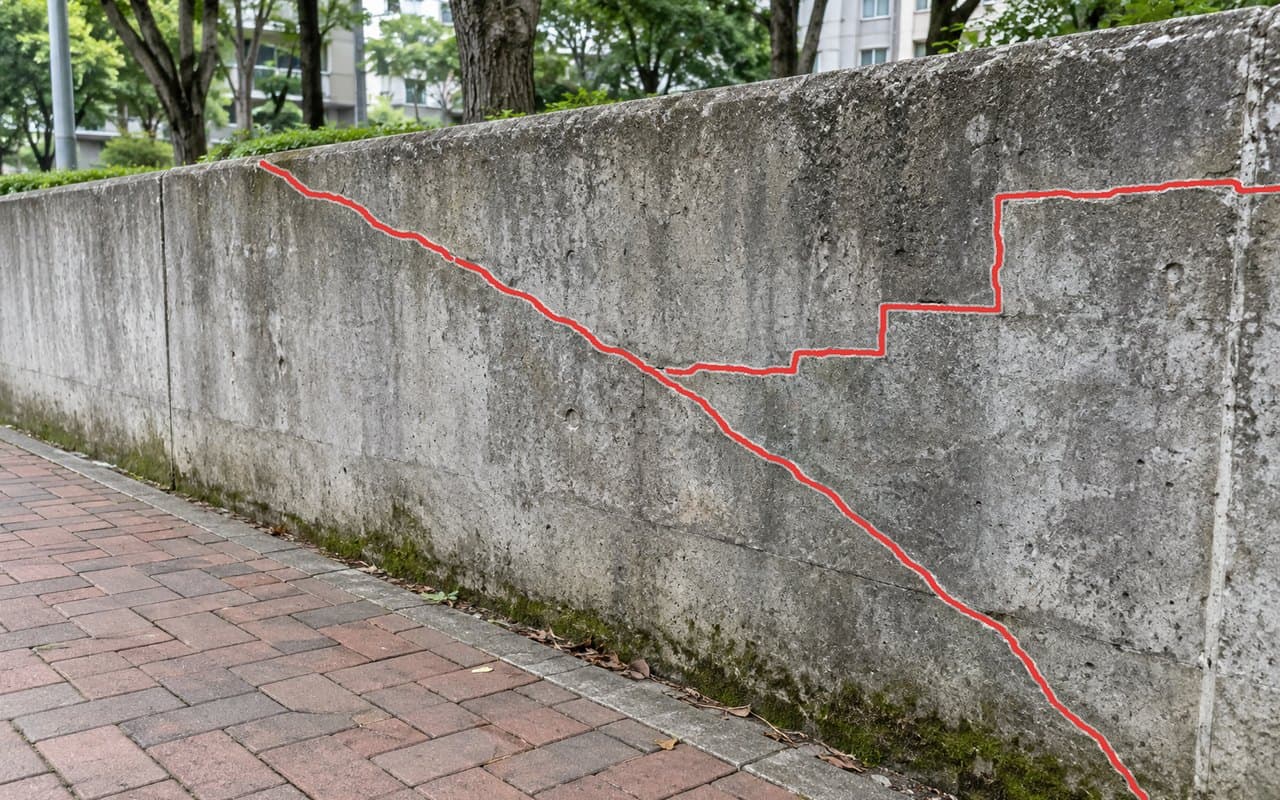
Crack in a retaining wall beside a sidewalk

Parks · Outdoor facilities

Retaining walls · Fences · Sidewalks · Playground bases
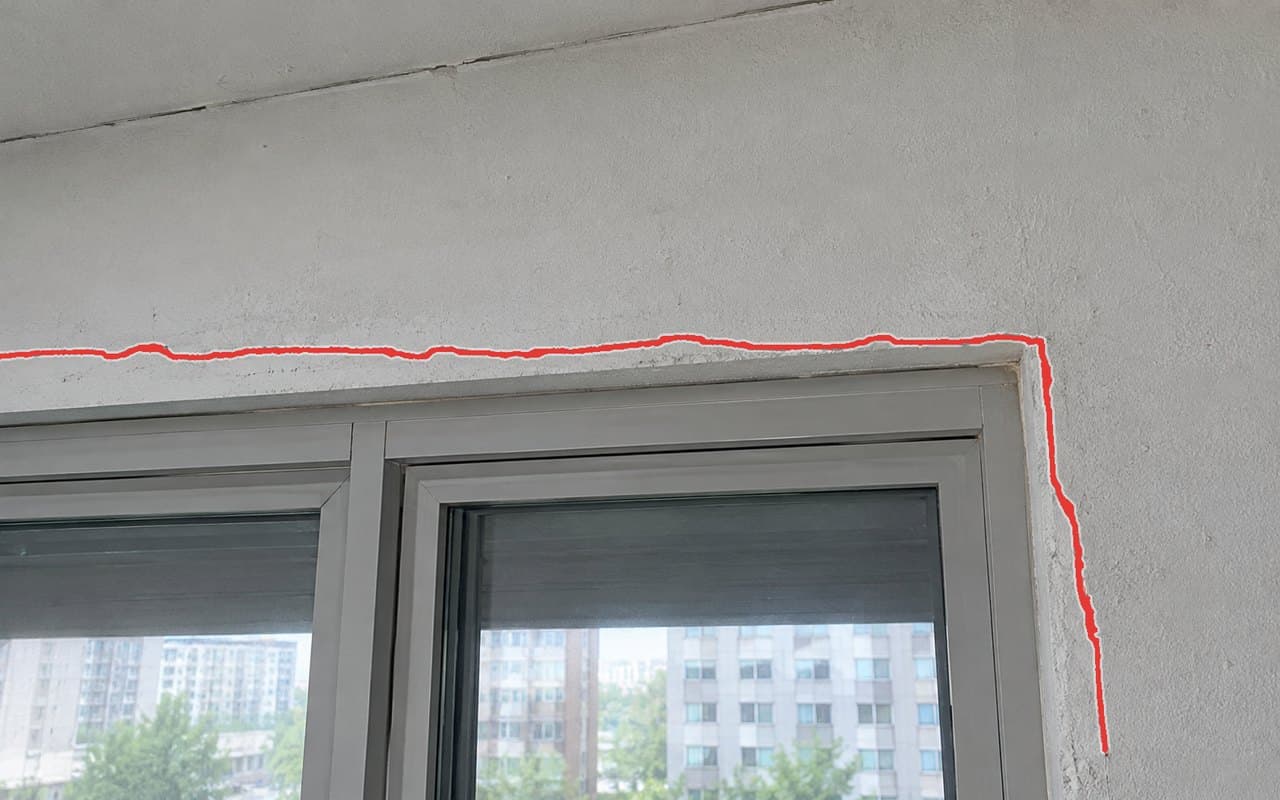
Crack in the wall above a window

Shared facilities

Community centers · Admin buildings · Guard posts · Rooftops
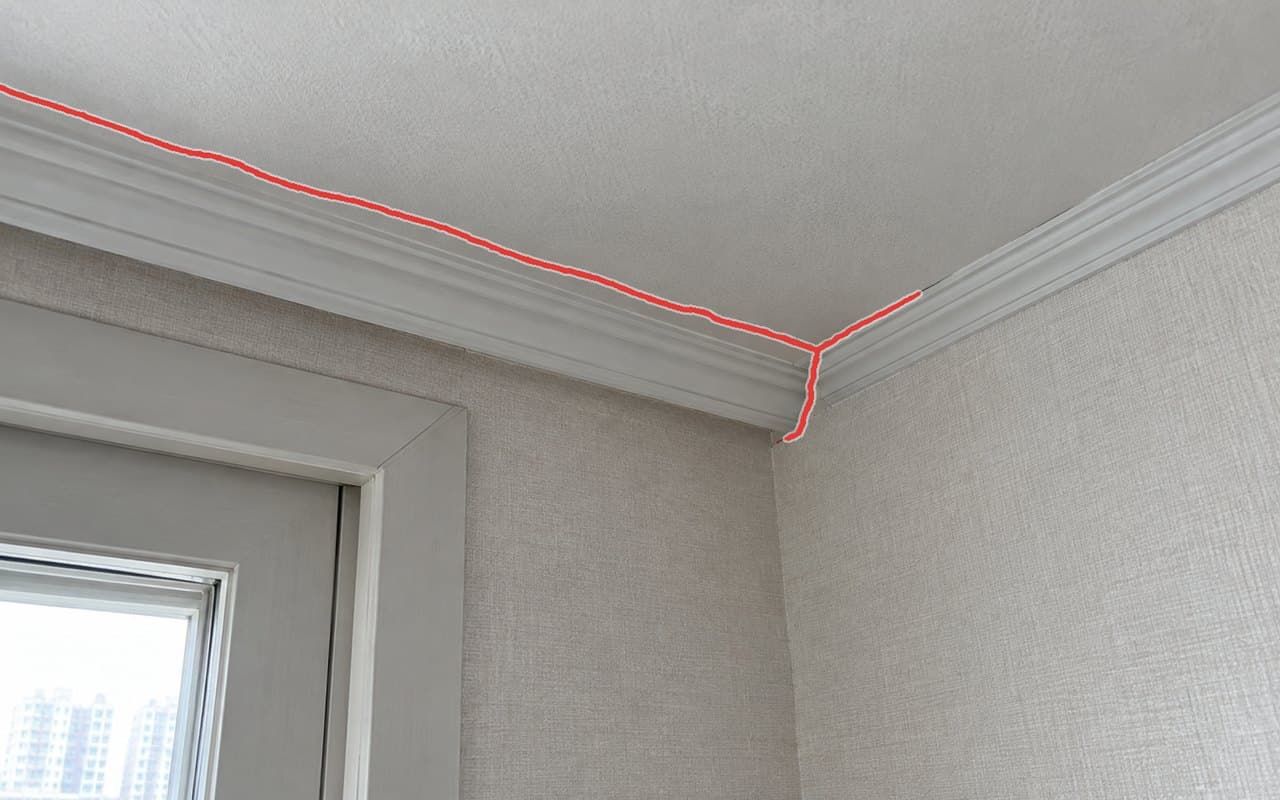
Damage marked at a ceiling corner inside a unit

Inside units

Living rooms · Bedrooms · Kitchen walls · Ceilings
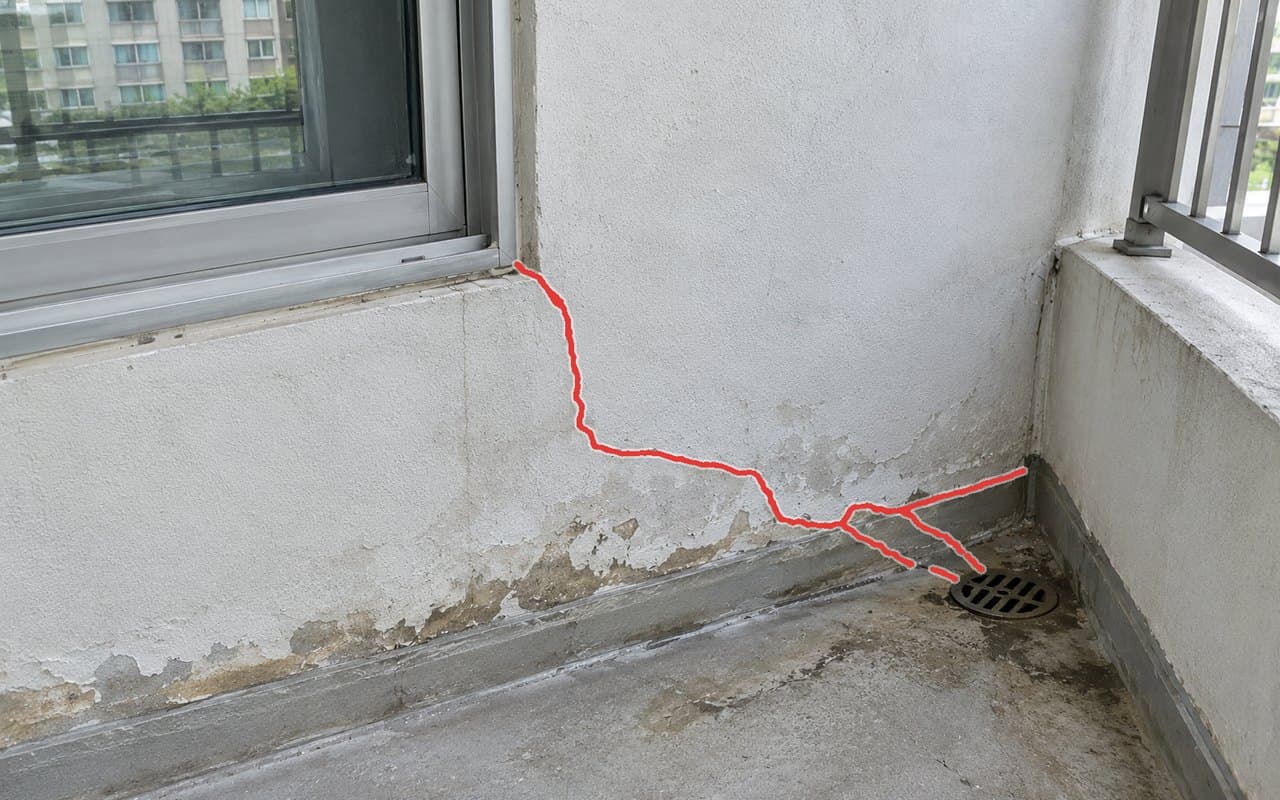
Crack in the wall around a veranda window

Verandas · Balconies

Around windows · Exterior wall joints · Floor drains

It also works for these facilities.

  • Apartments · Officetels
  • Office buildings · Retail
  • Factories · Logistics centers
  • Schools · Public offices
  • Bridges
  • Tunnels · Utility tunnels
  • Retaining walls · Cut slopes
  • Dams · Ports · Roads

For structures that are hard to photograph up close or need large image sets, such as full high-rise facades or long-span bridges, we recommend KO-DETECT PRO.

The same inspection, done differently.

  • Photo sorting

    Until now: Photos mixed into a phone album, notes in a notebook

    With KO-DETECT ON: Records sorted automatically by place and date, with locations marked on the drawing

  • Damage assessment

    Until now: Damage size judged by eye

    With KO-DETECT ON: AI finds cracks and calculates width (mm) and length (m)

  • Location records

    Until now: Locations marked by hand on paper drawings, then redrawn in CAD

    With KO-DETECT ON: Mark locations on the drawing and link photos to finish damage marking

  • Reports

    Until now: Excel tallies and photo reports written by hand every time

    With KO-DETECT ON: Three types of report materials produced at once

  • Past records

    Until now: Past inspection data scattered and hard to find

    With KO-DETECT ON: Inspection data from multiple rounds managed in one place

Organize your photos, and analyze them when needed.

Work continuously from sorting to reports, using the photos taken on site.

Flow illustration: shooting on site with a phone, organizing on a drawing on a PC, then producing report documents
  1. 01
    Shoot and registerBring site photos into your PC and add location, floor, zone and notes.
  2. 02
    Auto sort and manageGroup photos by place and time, and keep them by facility and inspection round.
  3. 03Subscription
    AI analysisCracks are detected and measured, then a person reviews and confirms them.
  4. 04
    Report outputPhoto sheets, damage quantity tables and exterior survey drawings are created automatically.
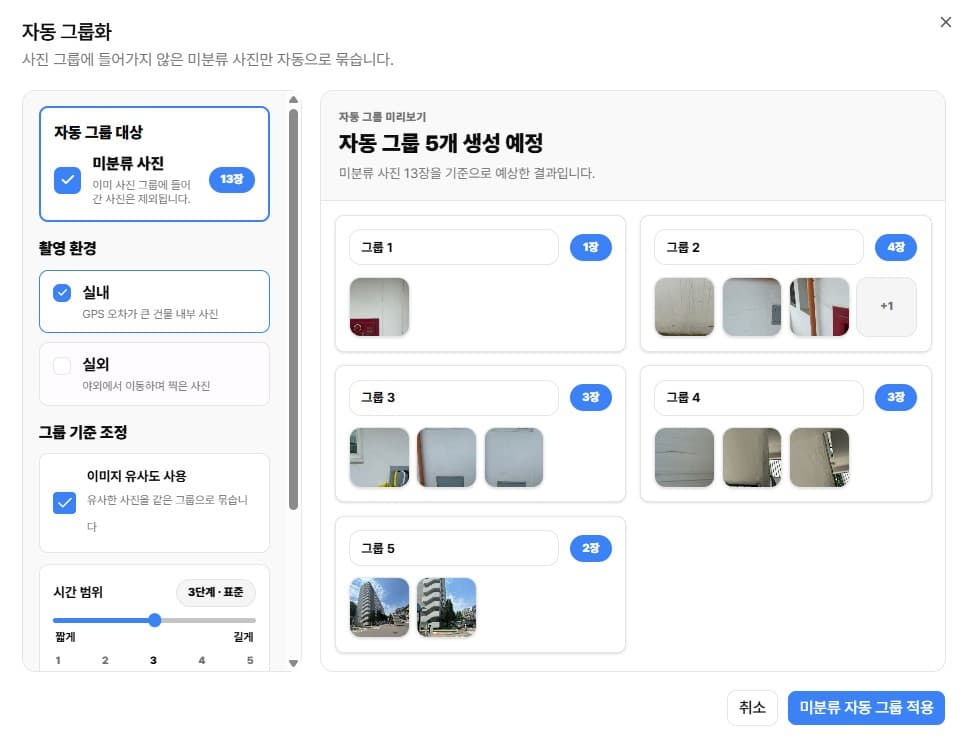
Auto grouping window with five groups prepared from 13 unsorted photos
Feature 1 · Automatic photo grouping

Hundreds of photos, organized with one click.

Photos with similar shooting conditions and metadata are grouped automatically into folders by place.

  • EnvironmentIndoor or outdoor
  • Time rangeAdjustable in 5 levels
  • Distance rangeAdjustable in 5 levels
  • Image similaritySimilar photos together
Photo group card

Check analysis progress, drawing placement and photos that cannot be analyzed right on the photo group card.

Basic featureRegistering, saving and auto sorting photos have no storage limit.
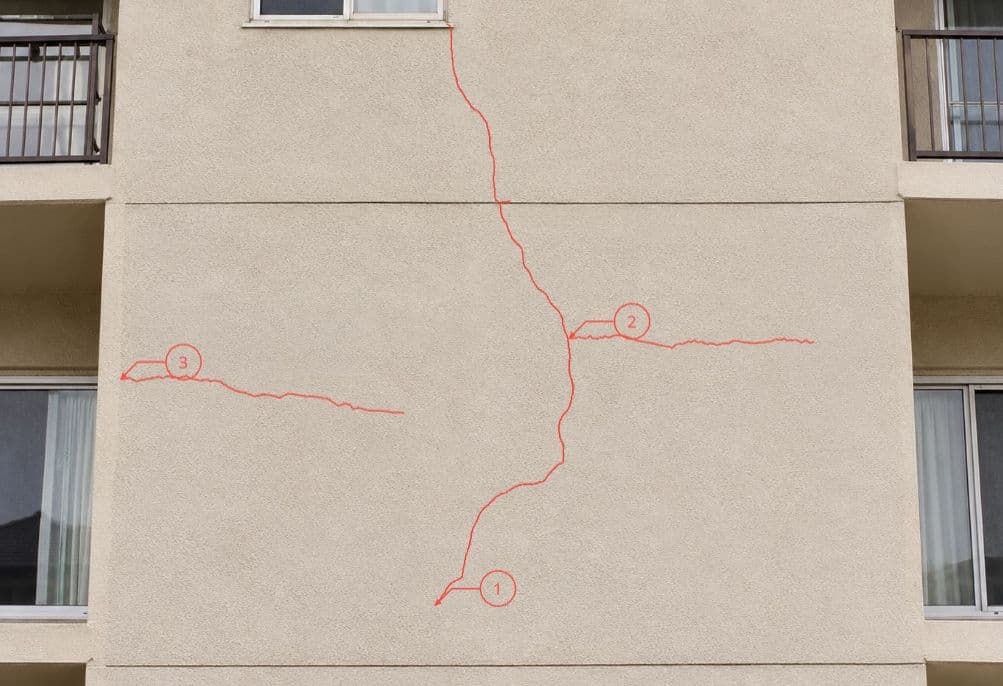
Apartment exterior wall photo with three AI-detected cracks marked by red lines and numbers
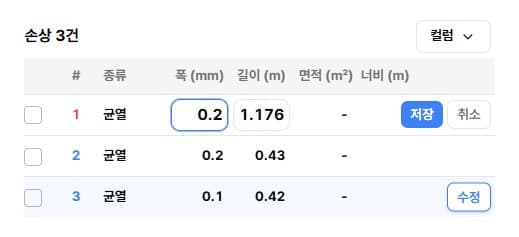
List of three damage items, with a person editing crack 1 to 0.2 mm wide and 1.176 m long
Feature 2 · AI analysis

AI finds and measures cracks, and a person reviews and confirms.

You can keep working freely within the project during analysis, and everything is saved automatically without a save button.

  1. 1
    Damage detection

    AI finds cracks and calculates width (mm) and length (m).

    Other damage is marked by the user, and length, area and width are then calculated automatically.

    Crack · AI detectionMap crackingEfflorescence (leak marks)Exposed rebarDelamination · Spalling

  2. 2
    Real size calculation

    The real size (mm, m) of damage in a photo is calculated from the shooting distance and the length reference.

  3. 3
    Review and edit

    Add damage yourself and fine-tune width and length values. Vertex editing, merging and deleting, plus photo correction (tilt, flicker), are supported.

    AI may not find all damage, and analysis results are for reference only.
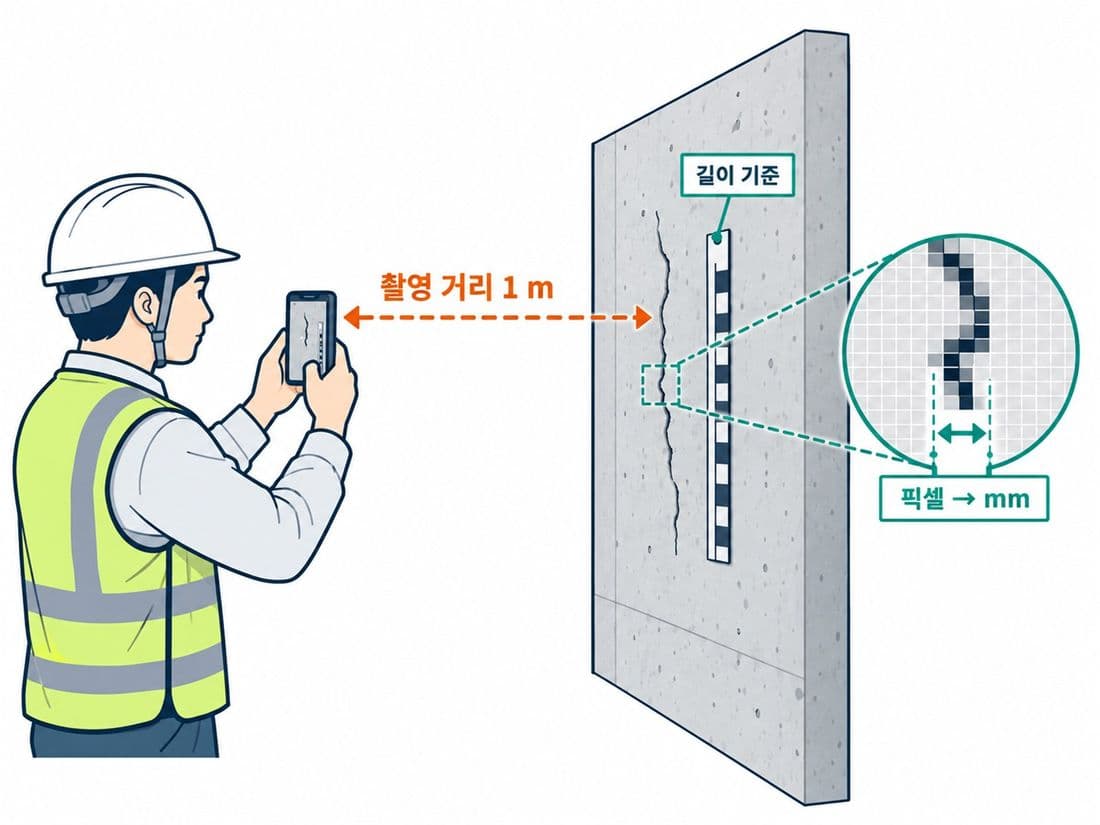
Concept illustration of an inspector photographing a wall from 1 m and using a reference ruler to convert photo pixels to mm

NoteHow the real size of damage in a photo is calculated

AI converts the width and length of damage in a photo to real size based on the shooting distance and length reference.
  • Shooting distanceThe distance at which the damage was photographed. The default is 1 m and can be changed for each photo.
  • Length referenceFilled in automatically from photo metadata. If unavailable, match it to something of known length, such as a ruler or tile.
  • Batch applyPhotos taken under the same conditions can be updated at once by photo group, all photos or individual photos.
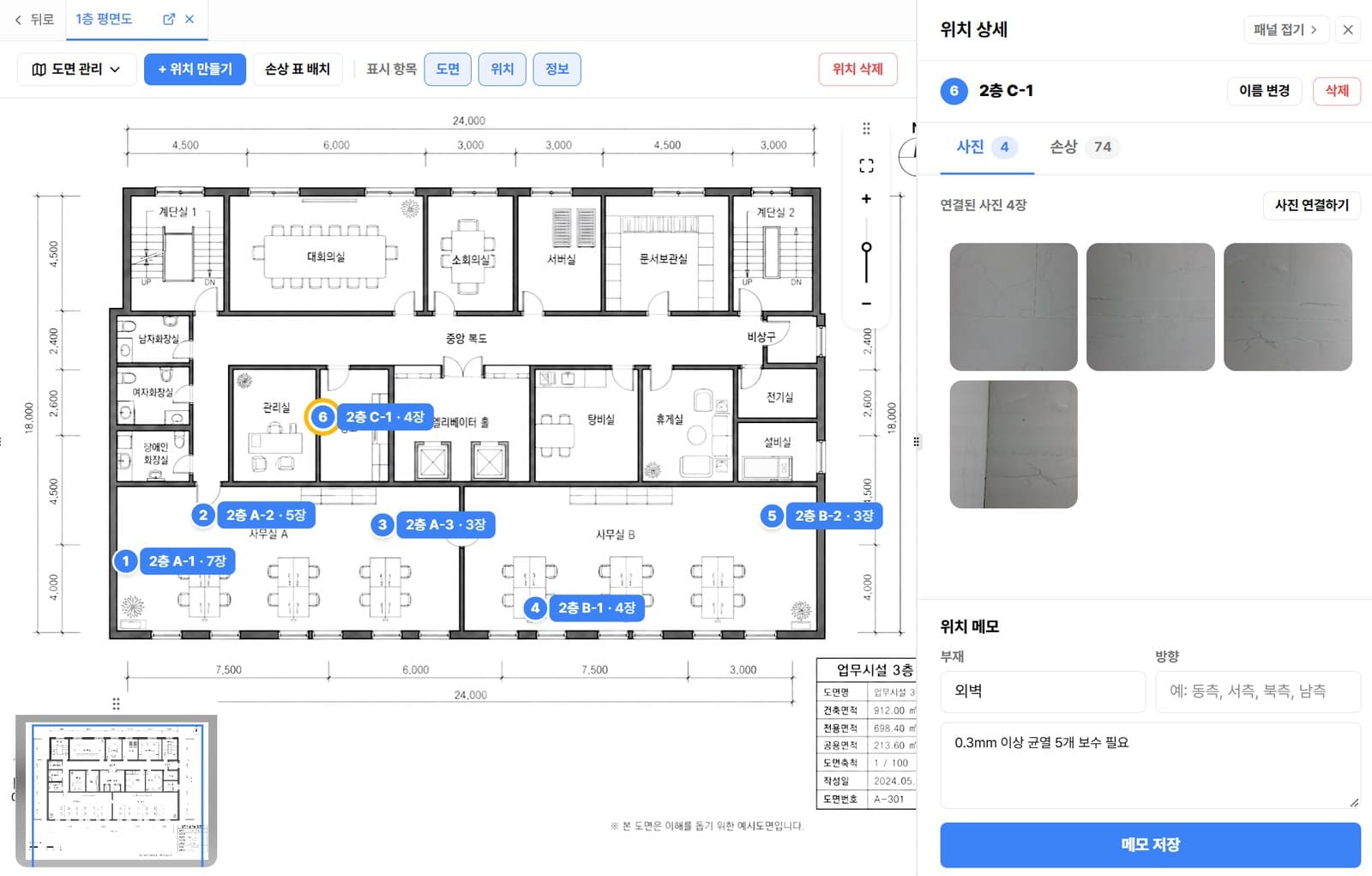
KO-DETECT ON drawing screen showing six location pins with numbers and photo counts on a floor plan, and on the right the four photos and memo for the selected location “2F C-1”
Feature 3 · Location · Drawings

Link photos to the drawing and see damage locations at a glance.

Mark locations on the drawing, then export photos and damage by location as an exterior survey drawing (DXF).

  • Supported drawing formatsPDF · DXF · JPG · PNG (up to 300MB)
  • Start without a drawingPlace locations on a blank canvas first and swap in the drawing later
  • Location detailsPhotos · Damage · Member · Direction · Site notes for each location
  • Damage table placementTables on the drawing are saved together in the DXF file
Feature 4 · Report output

Create three types of inspection report materials at once.

Just choose the scope and files and receive them as a single ZIP. Get back the time spent sorting photos and building tables.

Word · PDF

Photo sheet

A document listing the type and size of damage for each damage photo.

Excel

Damage quantity table

Collects counts and sizes by damage type into a table. It forms the basis for repair quantities and budgets.
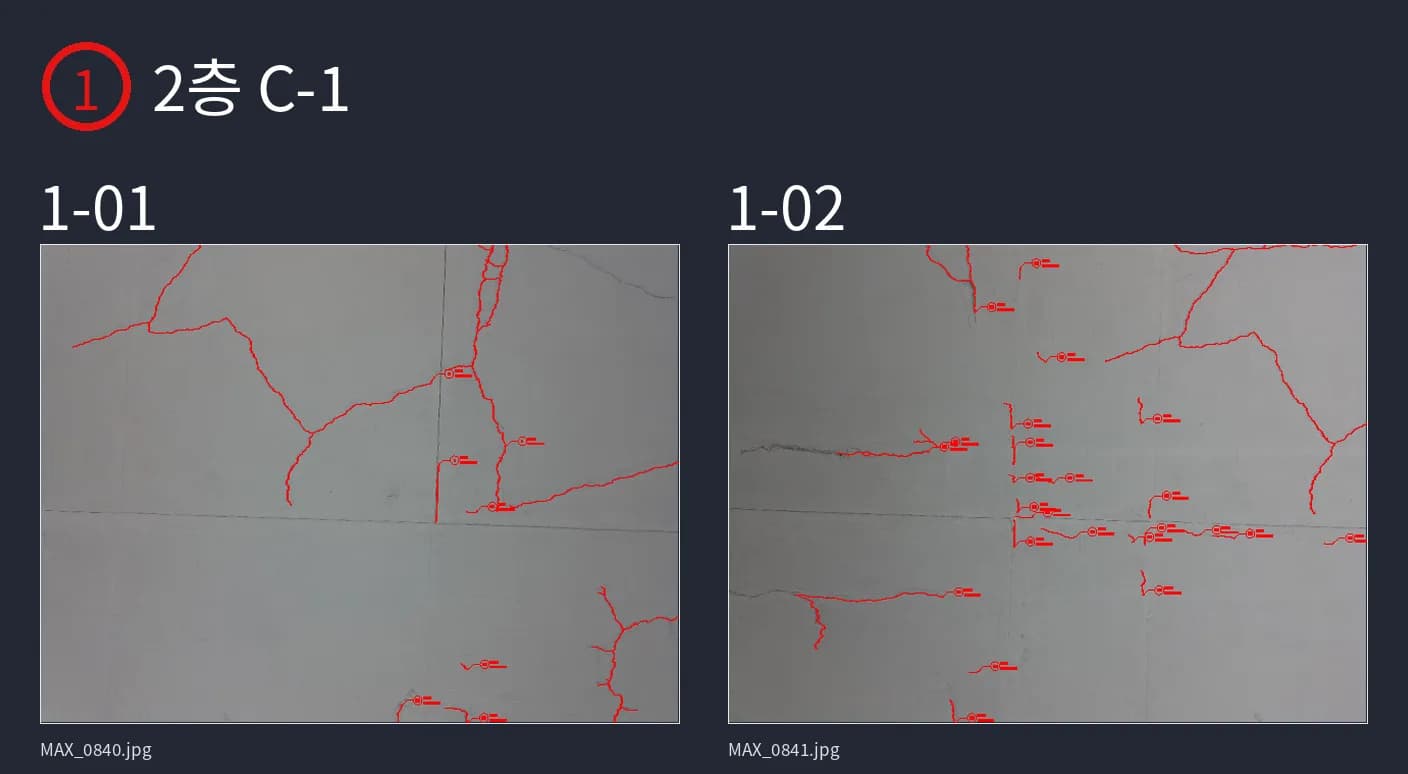
CAD screen showing an exterior survey drawing with photos 1-01 and 1-02 and their crack markings under location 1 (2F C-1)
DXF (CAD)

Exterior survey drawing

A CAD file showing damage locations and photo numbers on the drawing.

When exported by photo group, locations on the drawing are not included.

NoteActual CAD output screen

Use the photo numbers in the damage table to see right on the drawing which location and photo each damage item belongs to.

No.DamageWidth(mm)Length(m)Area(㎡)Breadth(m)Count(EA)QtyUnitNotePhoto
1Crack (0.3 mm or more)0.30.41.00.4mNew1-01
2Crack (0.3 mm or more)0.31.31.01.3mNew1-01
3Crack (0.3 mm or more)0.30.11.00.1mNew1-01
4Crack (under 0.3 mm)0.20.11.00.1mNew1-01
5Crack (0.3 mm or more)0.30.71.00.7mNew1-02
6Crack (0.3 mm or more)0.30.11.00.1mNew1-02
Photos 1-01 and 1-02 of location 1 (2F C-1) in the drawing
1

Photo number in the damage tableThe photo column shows which photo each damage item comes from.

2

Photo group number on the drawing1-01 is the first photo of location 1. Match it against the same number in the table.

The damage table is a screen version of the table saved in the exterior survey drawing (DXF).

Feature 5 · History · Facility management

The more you use it, the richer the building’s history.

Records are kept separately by facility and inspection round, and the building’s history grows with every inspection.

  1. 1
    Records by round

    Keep photos, damage and reports separately for each inspection round, and pick the round you need to review.

  2. 2
    Growing history

    Each inspection adds to the records, so when and what damage was recorded remains as the building’s history.

  3. 3
    Facility ledger

    Photos, drawings and reports for each building are kept in one project folder, so a new manager can take over the folder and continue.

AI tool connection

Ask your AI tool to find and organize inspection records.

Ask Claude or Codex as you normally would, and it finds and reports damage status and helps you edit records and write reports. (Connects via MCP)

  • Query
    Answers as soon as you ask.

    Damage status · Condition search · Locating on drawings

  • Change
    Confirms before making changes.

    Photo grouping · Deletion · Shooting distance changes · AI analysis

  • Judgment
    Asks again when a request is unclear.

    Checks ambiguous instructions and criteria before acting

When connecting, you can limit what the AI tool can do, for example allowing queries only.

The conversation and figures are examples for illustration. The names and trademarks of each AI tool belong to their respective companies.

Start with KO-DETECT ON and expand as far as you need.

Mobile for on-site shooting, KO-DETECT ON for everyday records, Pro for detailed inspections.

  1. Coming soon

    KO-DETECT ON Mobile

    • Shoot and collect records on site
    • Write notes on site
    • Send collected data to KO-DETECT ON
  2. Now · 2026

    KO-DETECT ON

    • Photo registration · Locations · Folders
    • AI analysis · Report output
    • Records by round · Facility management
  3. When you need detailed inspection

    KO-DETECT PRO

    • Detailed inspection with drones and large image sets
    • Orthoimage-based exterior survey
    • Use KO-DETECT ON records as baseline data

Records build up around each facility. Even data collected with Mobile can be stacked by facility, and these records become the facility’s baseline data. When a detailed inspection is needed, you can use Pro.

The name, detailed features and schedule of Mobile will be confirmed at launch.

Frequently asked questions

Can I use the AI results as they are?
Results are for reference. Values checked and edited by a person go into the report.
How is the size of damage calculated?
It is converted to real size using the shooting distance and photo metadata. Without metadata, match it to something of known length.
Where is my data stored?
In a project folder on your PC, and photos are not sent to external servers. However, if you connect an AI tool through MCP, the project information you request may be passed to that AI tool.
Does it replace statutory safety inspections?
No. Statutory inspections are performed by qualified professionals, and KO-DETECT ON output is used to prepare their reports.
Can I use it in other languages?
The interface is available in 4 languages: 한국어 · English · 日本語 · Español.
What PC do I need?
It runs on Windows 10 · 11. Minimum: i3-12100 / Ryzen 3 5300G · RAM 16GB · GTX 1660 Super 6GB · SSD 256GB Recommended: i5-12400 / Ryzen 5 5600X · RAM 32GB · RTX 3060 8GB · SSD 512GB
KO-DETECT ON

One photo taken today protects the building’s tomorrow.

You can start right away. Download the program or contact us about adoption.
Contact sales
Contact
TEL 02-565-6713 · FAX 02-518-6713
contact@komapper.ai
Languages
한국어 · English · 日本語 · Español